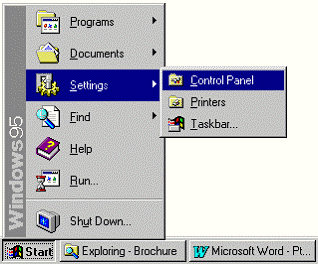
It is highly suggested that you uninstall PDFCX before upgrading to a newer version of the product.
To uninstall PDFCX click the Start button from the taskbar and select Settings then Control Panel.
Within the control panel select the Add/Remove Programs icon. Double click on the PDFCX entry in the list box or push the Add/Remove button to uninstall.
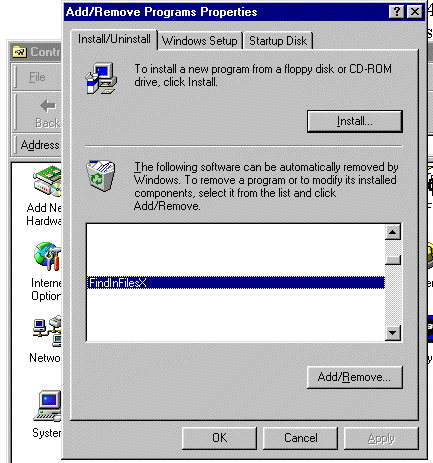
All files copied during the installation will be removed (only if other programs are not currently dependent on them). Furthermore, if files have been added to the installation directory (i.e. program files you created) then the uninstall wizard will report that not all directories could be deleted. You will have to manually remove these files.