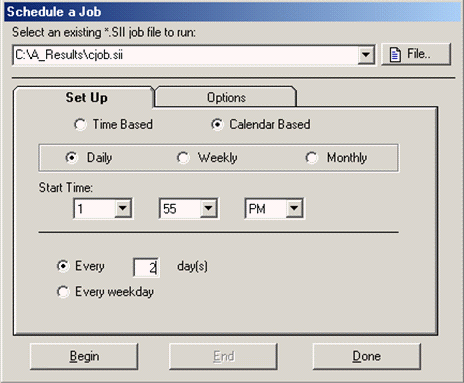
CD includes a built in timer that allows you to run a saved Conversion Job at a specified interval anywhere from seconds to months apart. You have the choice of running the job at a specific time, day and date (Calendar Based) or running it periodically every specified time period (Time Based).
You may want to use this feature in combination with the program options to move or delete an input file after processing.
Before enabling the scheduler, you must have a Conversion Job (*.SII) saved to file. Please see the Saving and Restoring a Conversion Job section for instructions on how to create a Conversion Job file.
IMPORTANT!!! Be certain to REWIND before you save a conversion job file if you want to start from the beginning the next time you load or schedule the file.
From the Conversion menu item select Schedule A Conversion Job (or simply press F8) to display the job scheduling form. Select an existing *.SII job file by either typing in the path and file name or browsing for it with the File… button. Next select one of the two possible scheduling methods:
Time Based: Use this for jobs that will run continuously every specified time period (e.g. every 35 minutes)
Calendar Based: Use this to select a specific time and day to run the job (e.g. the 3rd day of every month at 10:30 PM).
The title bar of the CD application will countdown and display the amount of time remaining until the next job is run.
More:
Scheduling a Conversion Job